How to Run Ollama on a VPS with 1Panel: Your Private AI Lab in 10 Minutes
Step-by-step guide to deploying Ollama on a VPS using 1Panel. Run private, zero-cost LLMs on your own server in under 10 minutes—no complex setup required.
TL;DR
Ollama lets you run open-source LLMs (Llama 3, Mistral, DeepSeek-R1) on your own VPS—no API keys, no token costs, no data ever leaves your server. With 1Panel, installation is handled from a one-click App Store in about 2 minutes. The entire setup, including pulling your first model, takes less than 10 minutes. Minimum hardware: 4 vCPU, 8 GB RAM, Ubuntu 22.04+.
Introduction
Cloud AI APIs are convenient, but they’re often expensive and costs can be unpredictable. Ollama simplifies local LLM deployment by handling model downloads, runtime management, and API serving—all in one tool. For VPS users, 1Panel adds what’s missing: easy app installs, resource monitoring, and security controls with just a few clicks.
This guide walks you through VPS requirements, installation, model selection, security hardening, and a cost comparison.
What is Ollama?
Ollama is an open-source runtime for large language models. It lets you pull a model, run it locally, and access it via an OpenAI-compatible REST API.
Key features:
- Model management (download, versioning, deletion)
- Local API server on port
11434 - Automatic CPU/GPU detection with quantization support
- Support for 100+ popular open-source models
Minimum VPS Requirements
Ollama runs on CPU-only VPS instances (GPU is optional).
| Use Case | CPU | RAM | Storage | Estimated Speed |
|---|---|---|---|---|
| Light (7B models) | 4 vCPU | 8 GB | 20 GB SSD | 5-15 tokens/sec |
| Standard (13B) | 8 vCPU | 16 GB | 40 GB SSD | 3-8 tokens/sec |
| Heavy (70B models) | 16 vCPU | 64 GB | 100 GB SSD | 0.5-2 tokens/sec |
Recommended starting point: 4 vCPU / 8 GB RAM / Ubuntu 22.04 LTS.
Does Ollama require a GPU?
No. A CPU-only deployment is fully practical for most individuals and small teams. A GPU can improve throughput and latency with larger production workloads, but it’s not required to get started.
How to Install Ollama on a VPS Using 1Panel
Step 1: Install 1Panel
bash -c "$(curl -sSL https://resource.1panel.pro/v2/quick_start.sh)"
Step 2: Open the App Store and Find Ollama
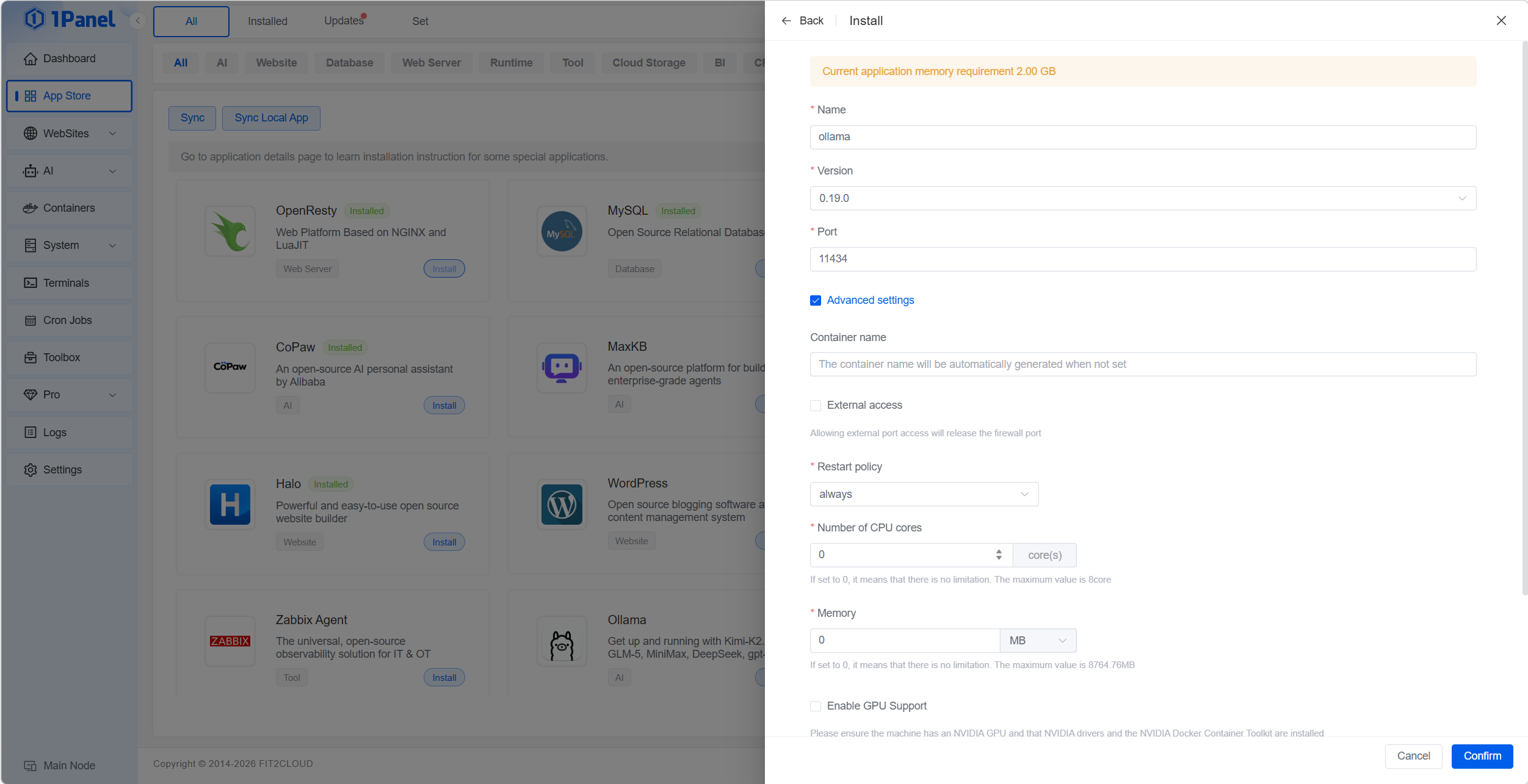
In the 1Panel sidebar, navigate to App Store, search for Ollama, and click Install.
Step 3: Configure Installation Options
- Port: default
11434 - Optional CPU/RAM limits
- Data directory for storing models
- If you want to allow access to Ollama from outside the server (via IP + port), check the ‘External Access’ option.
Step 4: Run Your First Model
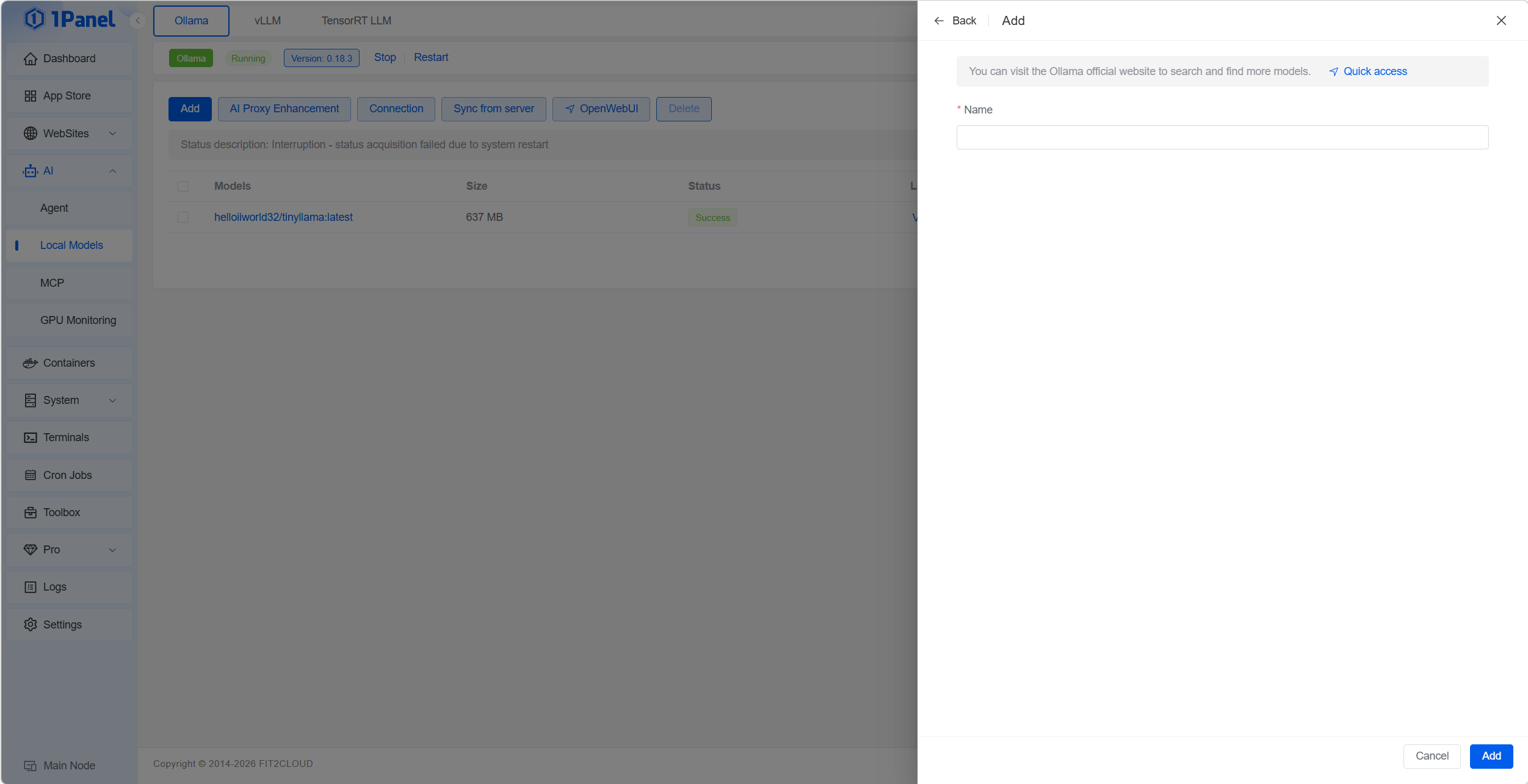
Go to the ‘AI’ > ‘Local Models’ > ‘Ollama’ page and click the ‘Add’ button to launch a new model. Enter the model name in the Name field; Ollama will automatically pull and start the model from its repository. You can browse available models at https://ollama.com/search.
Step 5: Test Model Chat
Once the model is downloaded, click the ‘Run’ button next to it in the Ollama model list to open a command-line chat with the model directly.
Alternatively, you can test with the following API call:
curl http://{SERVER_IP}:11434/api/generate -d '{
  "model": "llama3",
  "prompt": "Explain self-hosted LLMs in one sentence.",
  "stream": false
}'
Step 6: Security Hardening
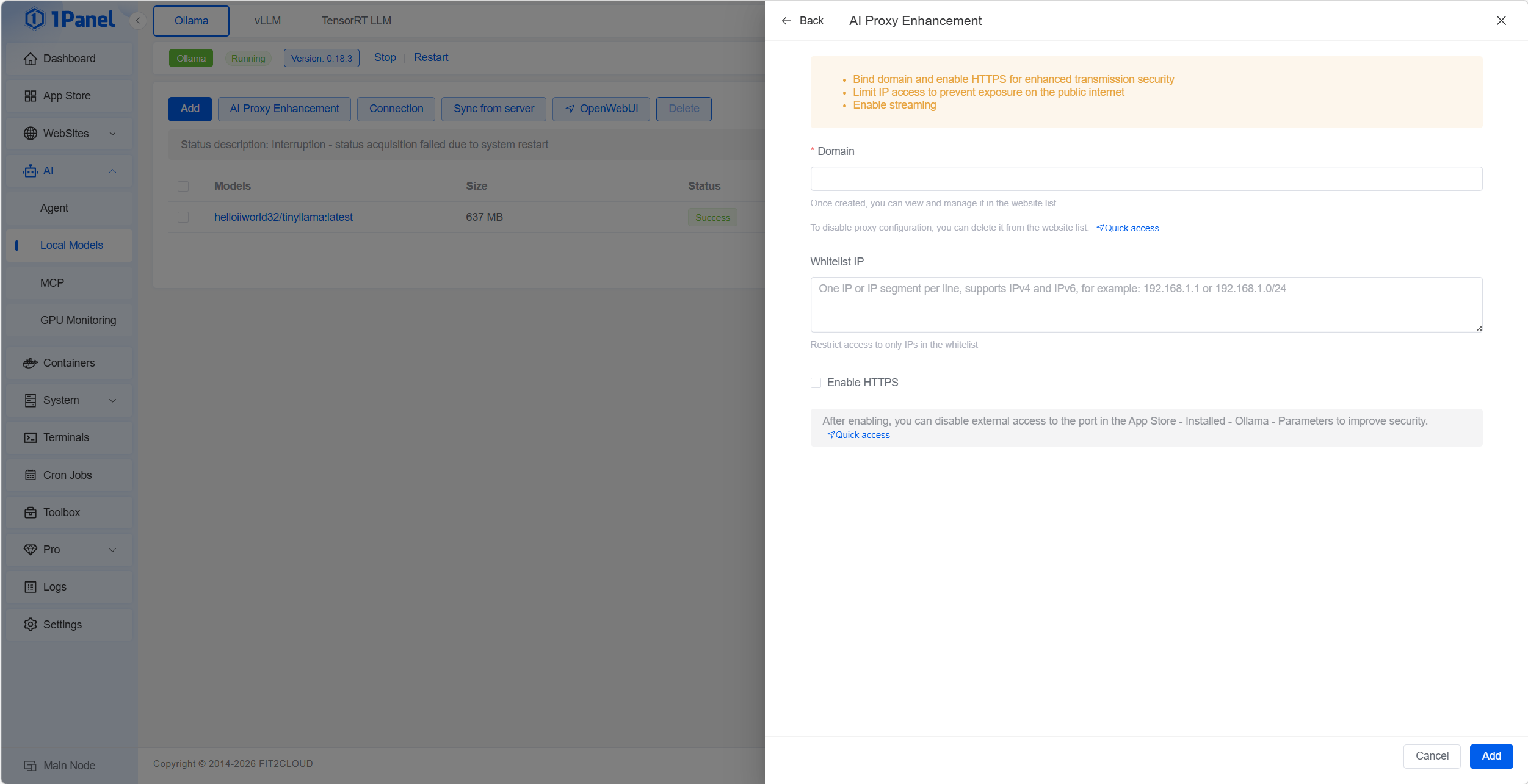
When you’re ready to serve Ollama to end users, click the ‘AI Proxy Enhancement’ button to enable a reverse proxy and HTTPS, further strengthening the security of your Ollama service.
What Models Can You Run?
Common models suitable for VPS include:
- Llama 3 8B
- Mistral 7B
- DeepSeek-R1 7B
- Qwen2.5-Coder 7B
- Gemma 2 9B
For most teams on standard VPS hardware, Llama 3 8B and Mistral 7B are ideal starting points.
Security Best Practices
- Keep port
11434private by default. - Use 1Panel’s firewall to block public inbound connections.
- If a public endpoint is required, always front Ollama with a reverse proxy, enable HTTPS, and use authentication—all configurable within 1Panel.
- Keep both Ollama and 1Panel updated to the latest versions.
Cost Comparison: Self-Hosted vs Cloud APIs
For low usage, cloud APIs can be cheaper. But for sustained volume, self-hosting is almost always more cost-effective—with a predictable fixed monthly cost.
Typical self-hosted costs:
- VPS (4 vCPU / 8 GB): $15-25/month
- Optional 1Panel Pro: $80/year
What Can You Build?
- Private coding assistant
- Internal knowledge base Q&A
- n8n AI automation workflows
- Self-hosted chat UI
- MCP-based internal AI tooling
Conclusion
With 1Panel, deploying Ollama on your VPS is no longer a complicated manual process. You get a private AI runtime with centralized app management, monitoring, security controls, and predictable costs—right out of the box.
Get Started with 1Panel
Ready to run your own private AI lab?
-
Install 1Panel free → — takes about 2 minutes
-
Compare OSS vs Pro plans — Pro starts at $80/year